This guide answers common questions first-time users have about starting a new project in Olive using the Blank Project method — from creating the project to using AI to build out requirements, project overview, vendor recommendations, and stakeholder surveys.
At a Glance: Project Setup Workflow
Here's the full setup process from start to finish. Each step is covered in detail in the sections below.
|
Step |
Task |
Where |
|
1 |
Create your project |
Projects page → + Create Project → Blank Project |
|
2 |
Generate requirement categories |
Ask Olive chatbot (Prompt 1) |
|
3 |
Add categories as sections |
Ask Olive chatbot (Prompt 2) |
|
4 |
Write requirements for each section |
Ask Olive chatbot (Prompt 3) |
|
5 |
Add requirements to the project |
Ask Olive chatbot (Prompt 4) |
|
6 |
Generate project overview |
Ask Olive chatbot → paste into Overview tab |
|
7 |
Get vendor recommendations |
Ask Olive chatbot → Solutions tab |
|
8 |
Create and send stakeholder surveys |
Ask Olive chatbot → Surveys tab |
|
💡 Tip: Work through the steps in order — requirements first, then overview, then vendor recommendations, then surveys. Each step gives Ask Olive more context to work with, improving the quality of its suggestions. |
Creating a New Project
Q1: How do I create a new project in Olive?
A:
- Click 'Projects' in the left sidebar to go to the Projects page
- Click the '+ Create Project' button at the top right
- Select 'Blank Project'
- In the Create Project panel, enter your project name, choose a Sub-Account and Category
- Click 'Create Project'
Your blank project will be created and you'll be taken straight into it.
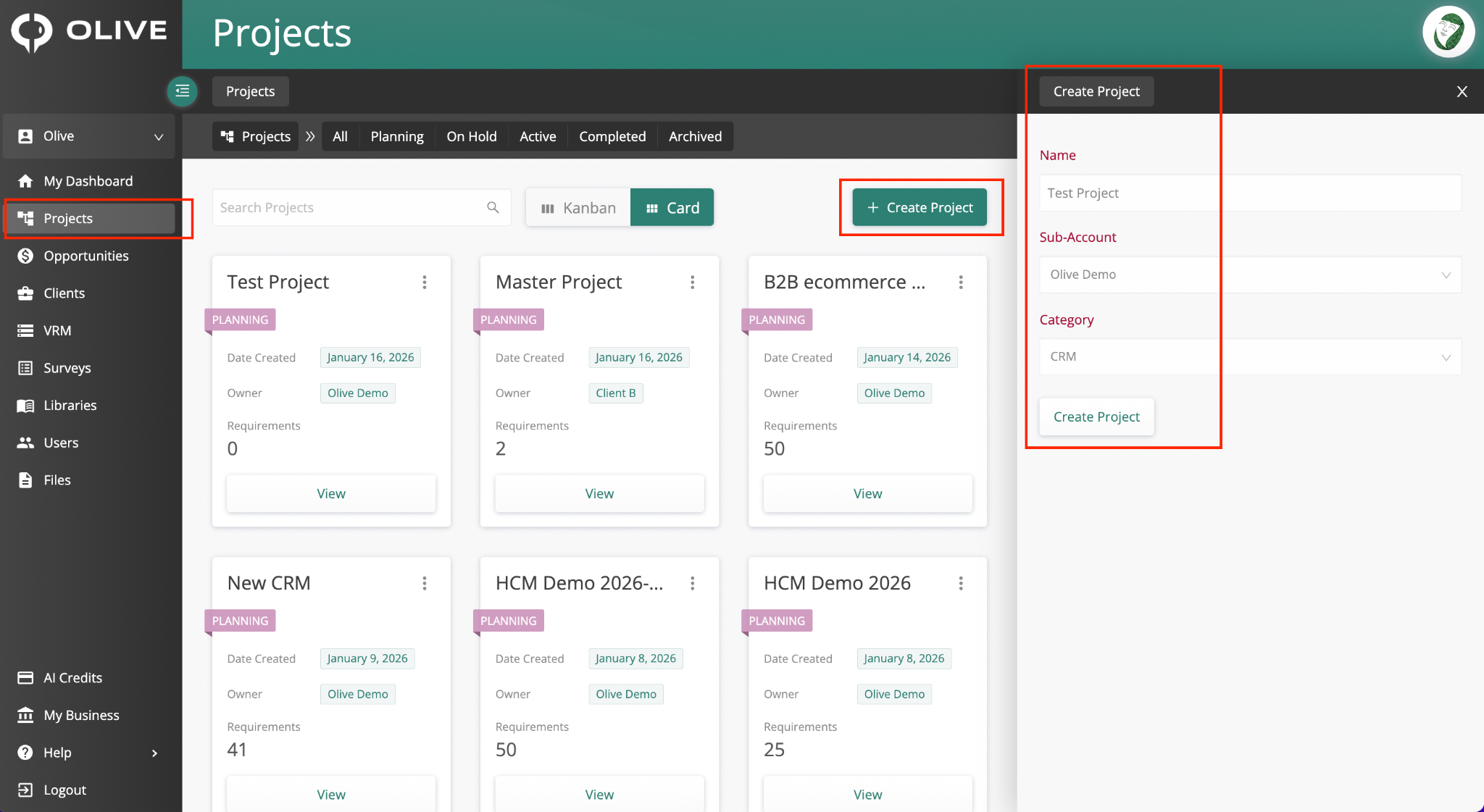
The Projects page — click '+ Create Project', select Blank Project, fill in the details, and click Create Project
|
💡 Tip: Give your project a clear, descriptive name — for example, 'CRM Platform Selection 2025' — so it's easy to identify later and recognisable to any vendors you invite. |
Q2: How do I start building out my project once it's created?
A:
Once your blank project is created, you'll land on the Requirements tab and the Ask Olive AI chatbot will open automatically on the right side of the screen. Use the chatbot to rapidly build your requirements, project overview, vendor list, and stakeholder surveys — following the steps in the sections below.
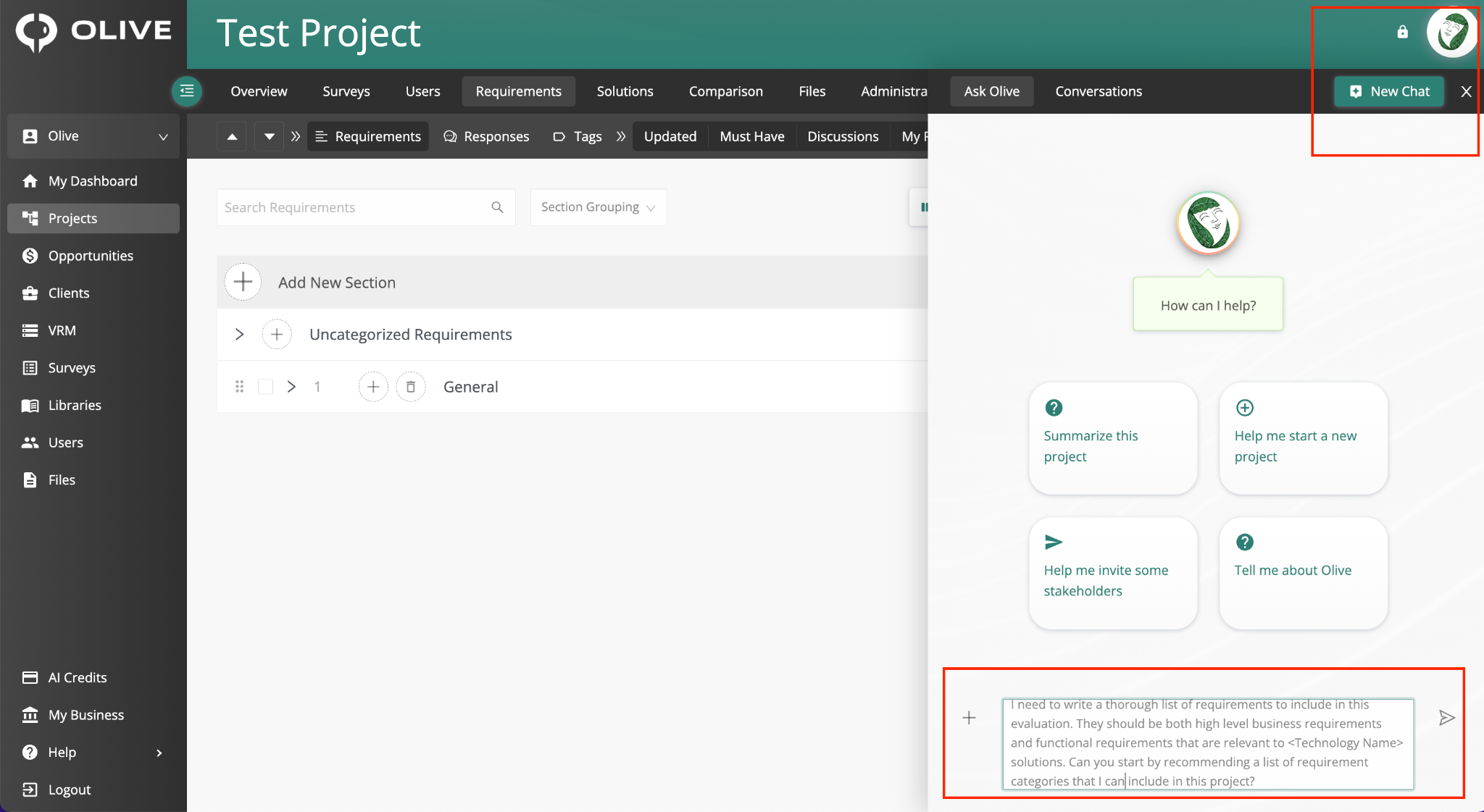
A new blank project — Ask Olive opens automatically with quick-start prompt suggestions
|
💡 Tip: If the Ask Olive chatbot doesn't open automatically, look for the Ask Olive button in the interface and click it to launch the panel. |
Building Requirements with AI
Use the following four-prompt sequence in the Ask Olive chatbot to build out a full set of requirements. Send each prompt, wait for the response, then move to the next. Do not skip steps — each prompt builds on the previous one.
Q3: How do I use the AI to generate a list of requirement categories for my project?
A:
Send Prompt 1 in the Ask Olive chatbot. Replace <Technology Name> with the type of software you're evaluating — for example, HCM, CRM, or ERP.
|
✦ Prompt 1 — Generate requirement categories I need to write a thorough list of requirements to include in this evaluation. They should be both high level business requirements and functional requirements that are relevant to <Technology Name> solutions. Can you start by recommending a list of requirement categories that I can include in this project? |
Q4: How do I get the AI to add the requirement categories as sections in my project?
A:
After Ask Olive responds with recommended categories, send Prompt 2 exactly as written:
|
✦ Prompt 2 — Add categories as sections Now add these as new sections to the project and NOT as requirements |
Ask Olive will create the categories as sections in your Requirements tab. Navigate to the Requirements tab to see them appear.
Q5: How do I get the AI to write the actual requirements for each section?
A:
Once the sections are added, send Prompt 3:
|
✦ Prompt 3 — Write requirements per section Now write 8 to 10 requirements for each section |
Ask Olive will generate 8–10 requirements per section. Review them in the chat before proceeding to Prompt 4.
Q6: How do I add the AI-generated requirements into the project?
A:
After Ask Olive has written the requirements, send Prompt 4:
|
✦ Prompt 4 — Add requirements to the project Now add these requirements to the relevant sections in the project |
Ask Olive will add all requirements to their corresponding sections in the Requirements tab. Go to the Requirements tab to review everything that's been added.
|
💡 Tip: Once requirements are added, review them and edit, remove, or add your own to make them specific to your organisation's needs before sending them to vendors. AI-generated requirements are a strong starting point, but your team knows your business best. |
Creating the Project Overview
Q7: How do I use the AI to write my project overview?
A:
In the Ask Olive chatbot, send the prompt below — replacing the placeholder with your organisation's current technology challenges:
|
✦ Prompt — Generate project overview Please go through the requirements of this project. And also go through these challenges that we have <mention the technological challenges>. And create a project overview, with basic sections like: Strategic Goals and Objectives, Desired Future State, Current State, Current Systems and pain points associated with them, Benefits |
Ask Olive will generate structured overview content for each section. If you'd like changes, ask it to revise specific sections before you copy the content across.
|
📌 Note: Ask Olive cannot automatically add the overview content to the Description sub-tab yet. You'll need to copy the text from the chatbot and paste it into each section manually — see Q8 below for how to do this. |
Q8: How do I paste the AI-generated overview into my project?
A:
- Go to the Overview tab and click the Description sub-tab
- Click 'Add New Section' to create a section (or use an existing one)
- Double-click the heading to name it
- Expand the section and paste the relevant content from the Ask Olive chatbot into the text area
- Repeat for each section of the overview
Getting Vendor Recommendations
Q9: How do I get the AI to suggest which vendors to include in my evaluation?
A:
Once your requirements and project overview are in place, send this prompt to Ask Olive:
|
✦ Prompt — Get vendor recommendations Based on the requirements in this project and the project overview, please recommend some solutions/softwares along with their websites |
Ask Olive will suggest a list of relevant vendors with their websites. You can refine the results by asking follow-up questions — for example:
- "Please recommend North America based vendors only"
- "Can you suggest vendors suitable for mid-market organisations?"
Q10: How do I add the AI-recommended vendors to my project?
A:
Once Ask Olive has recommended vendors, you have two options:
- Ask Olive to add them directly — type 'Please add these to the project' in the chatbot
- Add them manually — go to the Solutions tab and click '+ Add Solution'
|
💡 Tip: Use Ask Olive's recommendations as a starting point, then supplement with vendors from your own research or from your Olive library using the '+ Add Solution' button in the Solutions tab. |
Creating Stakeholder Surveys
Q11: How do I use the AI to create a survey for my stakeholders?
A:
In the Ask Olive chatbot, send this prompt:
|
✦ Prompt — Generate stakeholder survey Based on the project requirements, create a survey that can be sent out to project stakeholders to gather their opinion and insights on the requirements. Also put an option for the stakeholders to mention the importance they feel should be attached to a requirement. |
Ask Olive will generate a survey and add it to the Surveys tab of your project. Go to the Surveys tab to review and customise it before sending it to stakeholders.
Q12: How do I send the survey to stakeholders once it's created?
A:
- Go to the Surveys tab in your project
- Find the survey Ask Olive created and open it
- Review the questions and make any edits needed
- Send the survey to your stakeholders using the distribution options available in the tab
|
💡 Tip: Gathering stakeholder input early helps you prioritise and star-rate requirements based on real input from the people who will use the new system — making your evaluation more credible and aligned with business needs. |
What's Next?
Once you've completed the setup steps above, your project is ready for vendor evaluation. Here's what to do next:
- Review and refine your requirements in the Requirements tab — edit, remove, or add any that don't fit your needs
- Invite vendors to submit their responses through the platform
- Set up Administration settings (Scoring Scale, Star ratings, Section and Department Weighting) before your team begins scoring
- Use the Comparison tab to evaluate vendor responses and pricing side by side once submissions are in
Still have questions? Contact your Olive project administrator or reach out to Olive support for assistance.